Welcome to CAC Grading’s User Portal guide! The portal is going to be your one-stop shop for managing your activity with us allowing you access to: create and track submissions, view and pay invoices, update your payment methods, and much more. We know navigating a new system can be daunting, but we are here to help if this does not answer your questions.
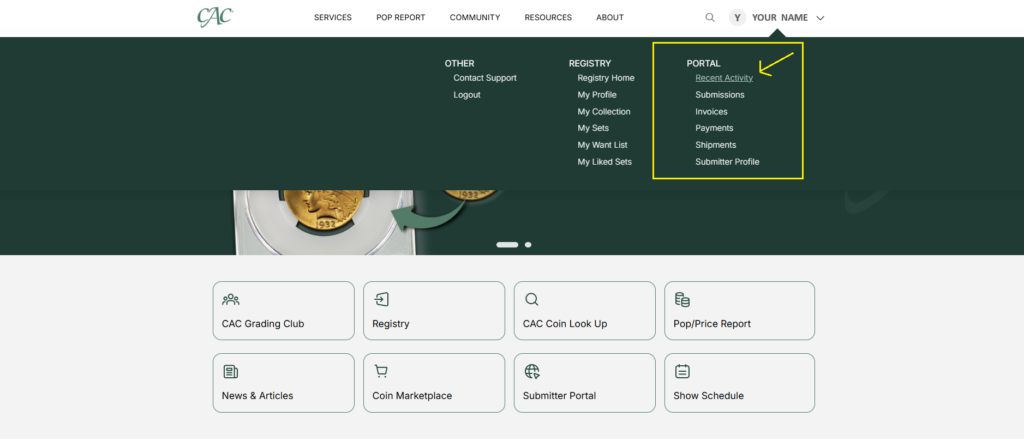
To get to the user portal, visit www.cacgrading.com and select “Sign in” at the top right corner of the webpage. Once logged in, click on your name and select any of the links under “Portal” from the drop-down menu.
Recent Activity #
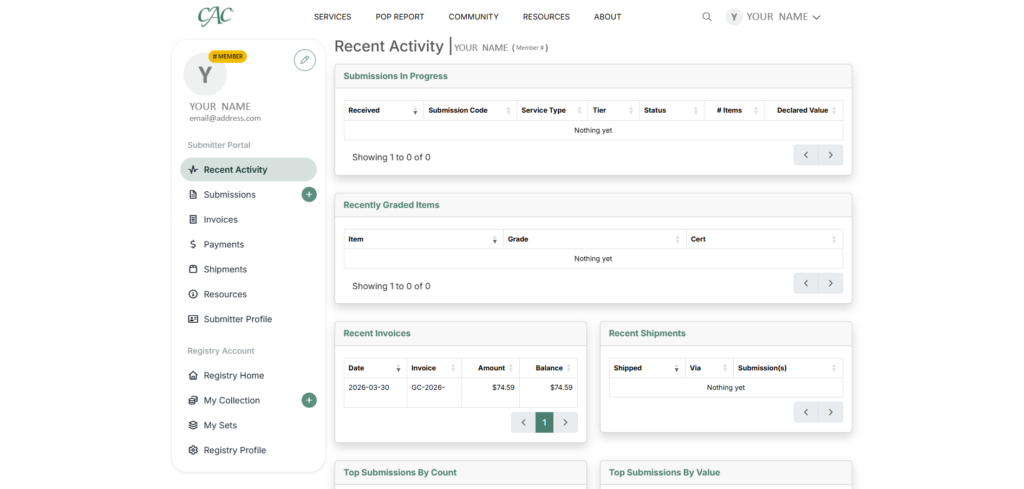
This tab is used to summarize all your recent activity, including your submissions, graded items, invoices, and shipments. If you’re unable to find a submission on this page, you can use the search bar at the top of the page to help locate it.
Personalization #
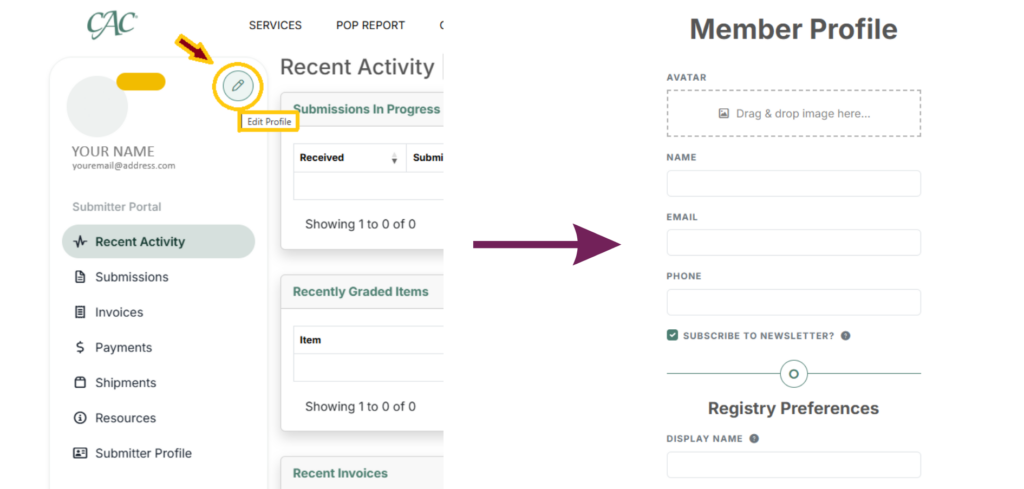
From any page in the portal or by selecting “My Profile” under the “Registry” header, you can edit your avatar and personalize your account. Please be mindful of image size, and you will be able to crop & save the image as your avatar.
Submissions #
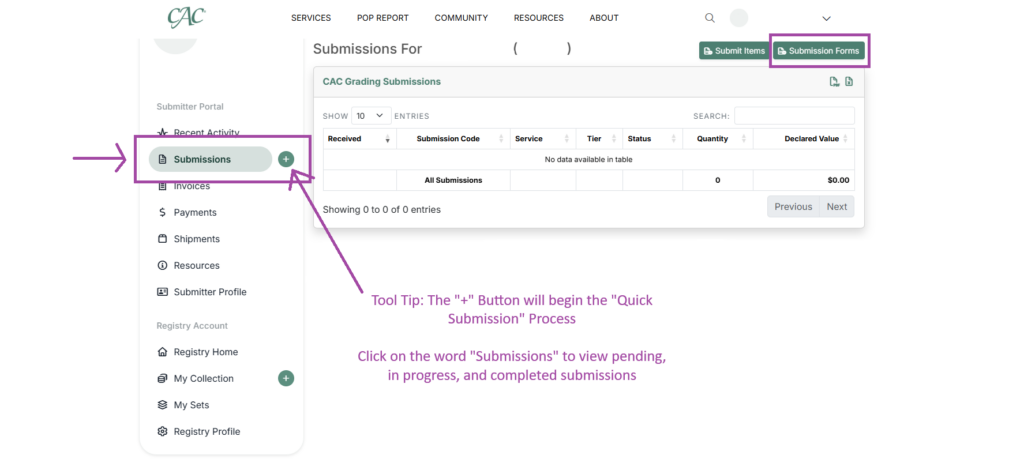
This tab lists current and previous submissions that have been graded, including details of their status, number of items, declared value, etc. If you are looking for a specific submission, you can utilize the search bar at the top of the page. If you select the “Submit items” button, a window will appear where you can add coins from your “My Collection” or “New Items” to build your online submission. Clicking the “Submission Forms” button in the top right corner will bring you to the resources tab. Clicking on the green plus symbol next to “Submissions” will open the Quick Submission feature (learn more in the next section).
For specific instructions on how to submit coins through the portal, please review the Quick Submission paragraph below and the articles linked there.
Quick Submission #
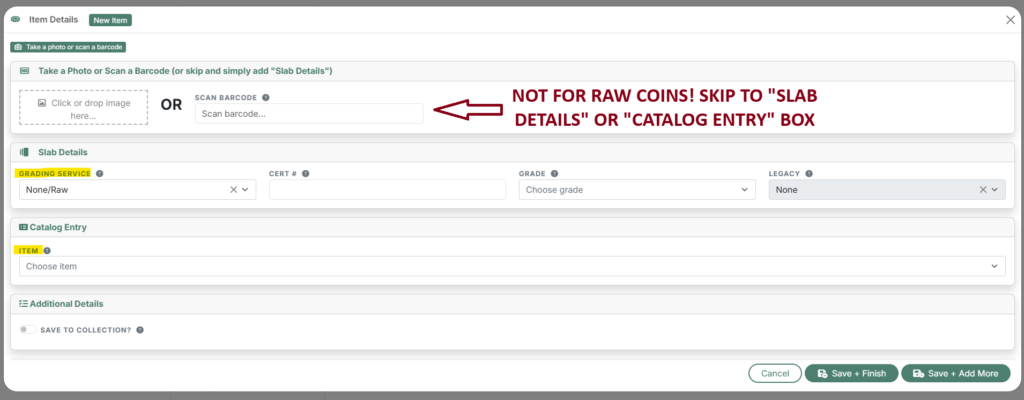
This can be used if you have a group of coins that you are ready to submit, and you want to do it quickly without adding the coins to your collection first. Both raw coins and slabbed coins can be entered in the “Quick Submission” item details box to create a submission. There is a $5 (50%) discount on the submission handling fee for completing an online/quick submission.
To learn more about making a quick submission, view this article.
If you have been a submitter for a long time, you should probably also review the article Portal Submissions – Tips for Pro Submitters.
Invoices #
This tab provides a view of all current and paid invoices, along with the balances due. From this view, you are able to select and pay any open invoice(s). You are also able to export a list of your invoices, should that be helpful to you. Payments are automatic for most submitters, but this is where you can go to make a one-time manual payment with a unique payment method.
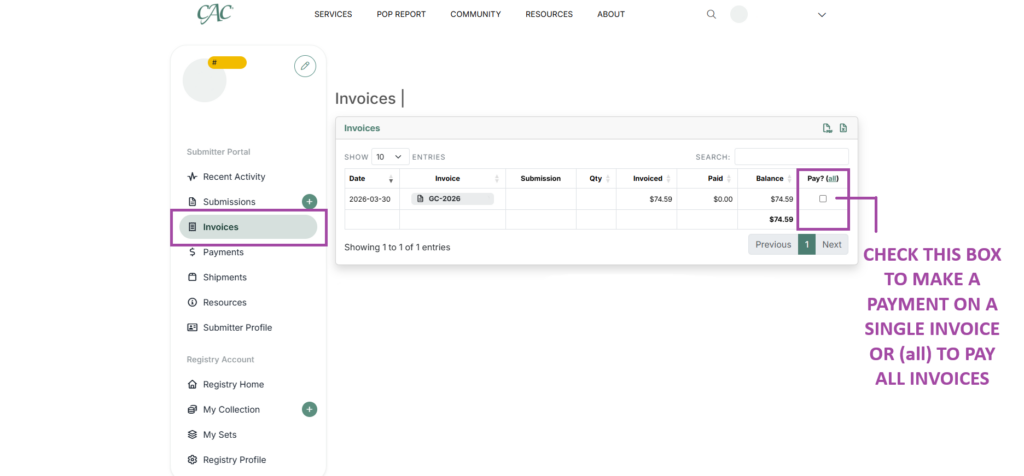
To pay open invoices, the submitter can check “all” and then “Make Payment” or select an individual empty box to pay the invoice for the selected submission(s). Please note that the box will then say “Pending” until the payment is processed. This usually takes two minutes, but it can be slower depending on the payment method. Grading Club members and most Collectors should have an automatic payment method on file.
Payments #
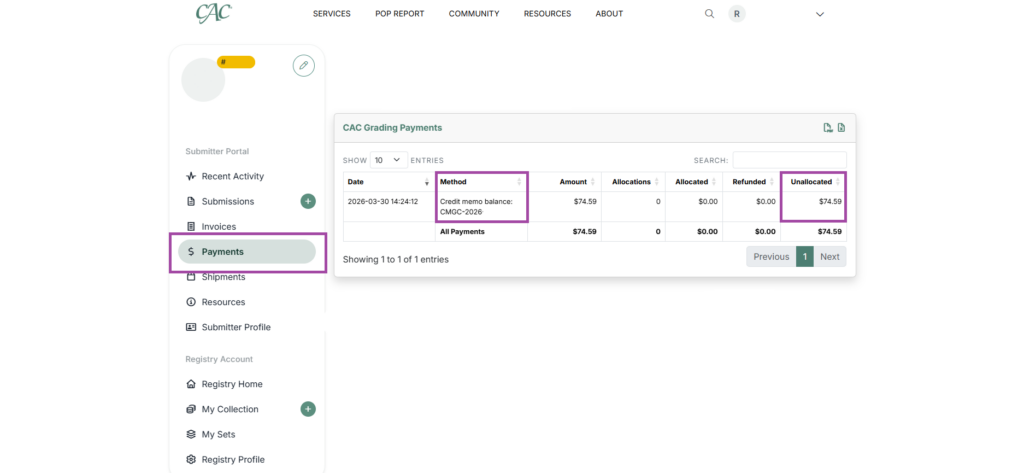
This tab enables you to review all completed payments and identify how each payment was allocated to your invoices (or if a portion remains unallocated as a credit balance). All Grading Club members will receive a credit memo once a calendar year for $99 or the prorated amount paid to join later in the year. The credit memo will automatically be applied to your first submission invoice total. The amount unallocated can be used towards future submissions, please contact accounting at help@cacgrading.com to use any open credits or unallocated funds.
Shipments #
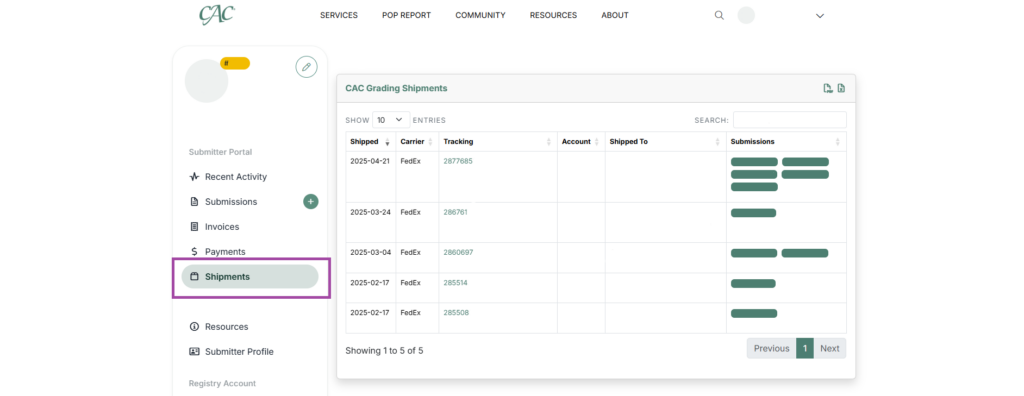
This tab allows you to view all the submissions that have been shipped by CAC to you and to sort by date shipped, carrier, tracking number, and the submissions included. If you are interested in locating a package that was sent by you to CAC, you can enter your tracking number in the search bar at the top of the website. Please note that you must be logged in.
Submitter Profile #
This tab allows you to view your personal information that CAC has on file such as your submitter number and membership level. From this page, you can add or remove payment methods on file. We believe this to be more secure than having payment methods written on submission forms, so please be mindful not to add your payment method there. For your submissions to be processed and shipped back, you must have an automatic payment method on file.
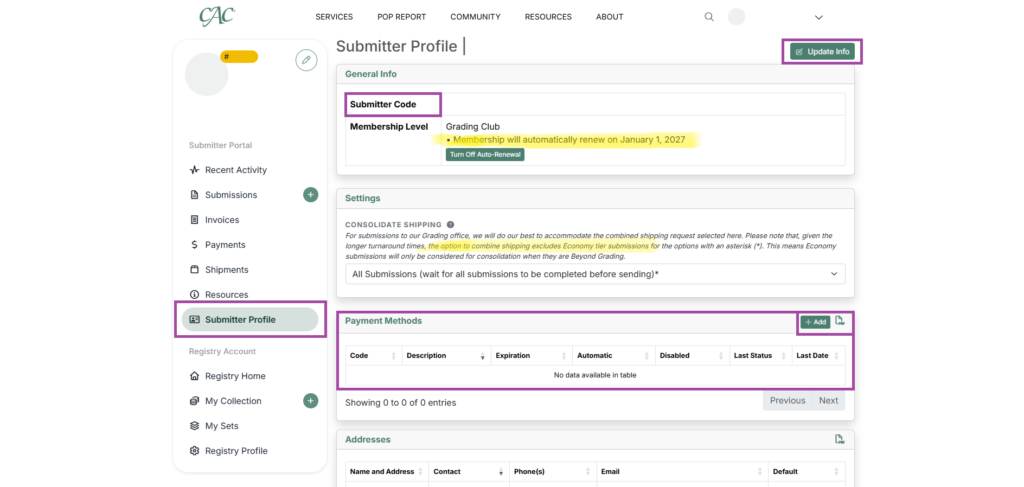
For any changes to addresses or user access, please contact CAC Customer Care at help@cacgrading.com. The “Update Info” button will help direct your message to the CAC Customer Care email.
Grading Club
Grading Club members, please note that membership will automatically renew on the 1st. You must turn off auto-renewal from your profile in the portal if you do not wish to pay $99 for the next year’s membership.
Combined Shipping
The CAC Shipping department does its best to combine shipping, but this can only be done well for submissions finishing at the same time. Economy tier submissions vary in completion times and will often not be combined with any other tier or submissions.
Registry #
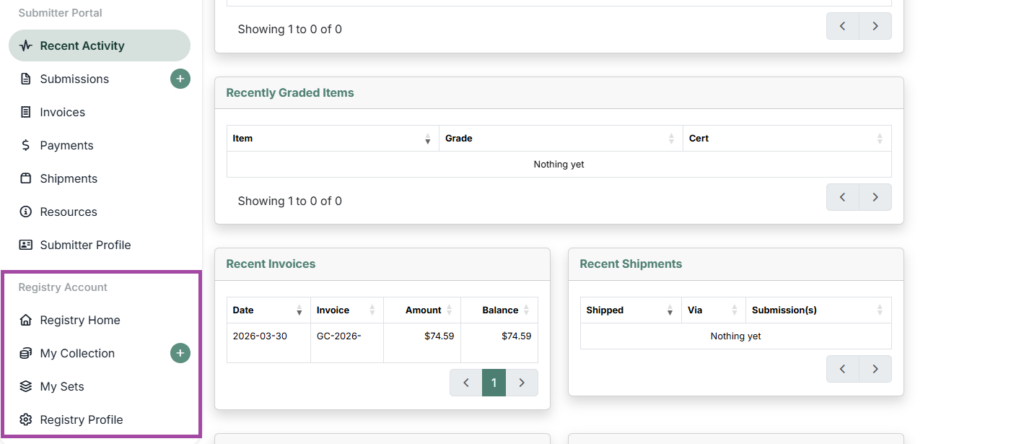
These tabs will bring a user back to the CAC Website Registry features. The “My Collection” tab is intended to be a collector’s hub for tracking coin inventory. While most dealers may not have a use for this feature, we hope it will be helpful for those wanting to track their coin inventory in one place; this will also be linked to the CAC Registry, so there will be no need to enter your inventory again if/when you would like to participate there. To learn more about the CAC Registry, please click here.
Still have Questions? #
If you have additional questions not addressed here, please contact CAC Customer Care at help@cacgrading.com or (757) 800-1750.